> ## Documentation Index
> Fetch the complete documentation index at: https://docs.hookflo.com/llms.txt
> Use this file to discover all available pages before exploring further.
# GitHub
> Set up webhooks to receive notifications for repository events from GitHub
## Integration Guide
This guide will walk you through setting up a webhook integration between GitHub and Hookflo, enabling you to receive alerts for repository events like code pushes, pull requests, issues, and more.
GitHub webhooks can be configured at either the repository or organization level, giving you flexibility in how you monitor your GitHub activity.
Hookflo only supports GitHub integration only when a secret is provided during webhook creation. Leaving the secret field empty will cause notifications to fail.Prerequisites
* A Hookflo account with an active project
* A GitHub account with admin access to the repository or organization you want to monitor
* Basic understanding of GitHub's workflow and repository management
## Integration Overview
The integration process follows these key steps:
1. Set up a webhook in Hookflo
2. Configure notification channels (email/Slack)
3. Connect GitHub to Hookflo
4. Configure GitHub to send webhooks
5. Test the integration
## Setting Up Your Hookflo Webhook
After logging into Hookflo, follow these steps to create and configure your GitHub webhook:
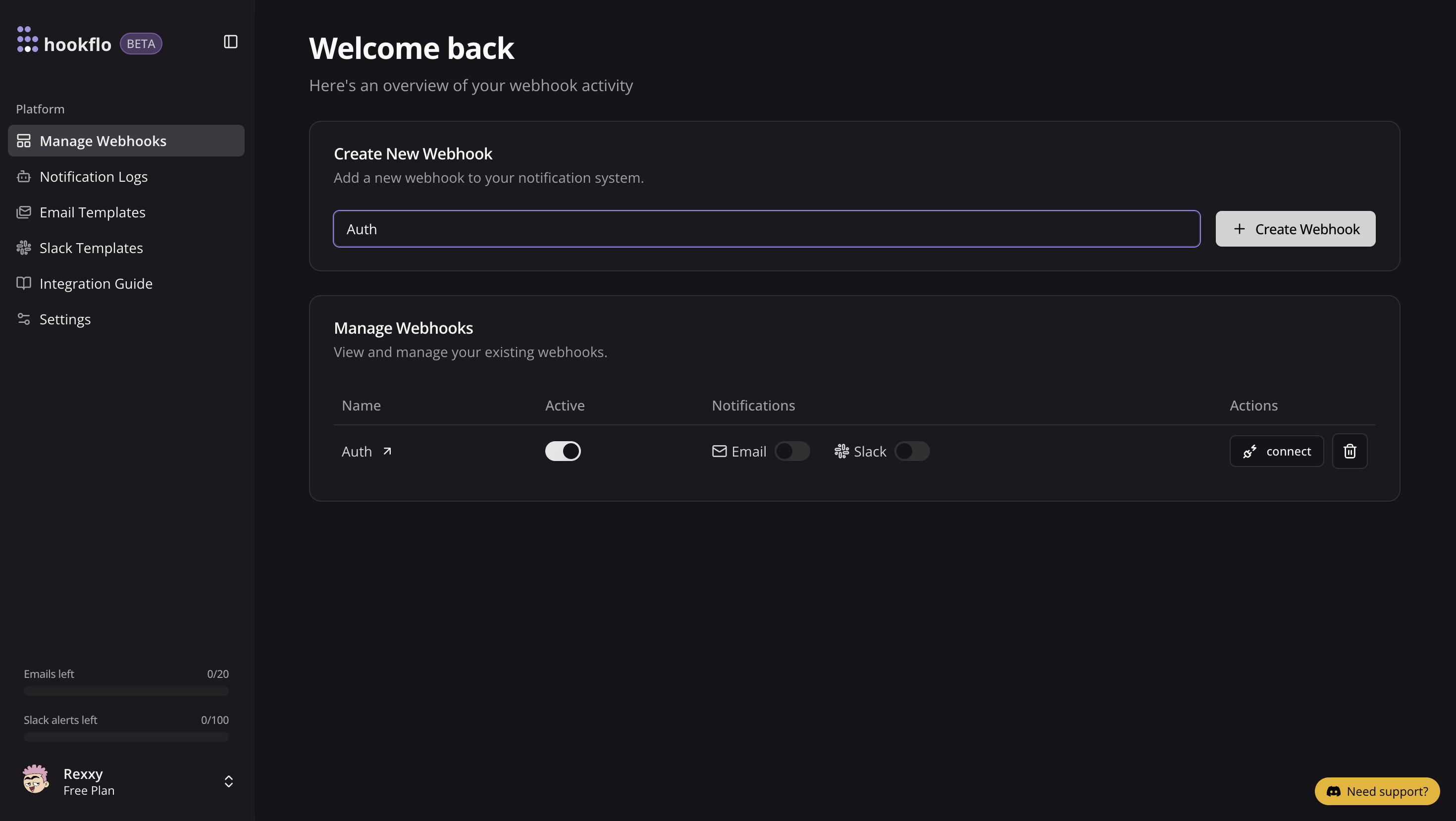
1. From your [Hookflo Dashboard](https://www.hookflo.com/dashboard/webhooks), navigate to > **Manage Webhooks**
2. Click on **+ Create Webhook**
3. Your webhook will be created in an inactive state by default
Once created, you'll see your webhook in manage webhooks table.
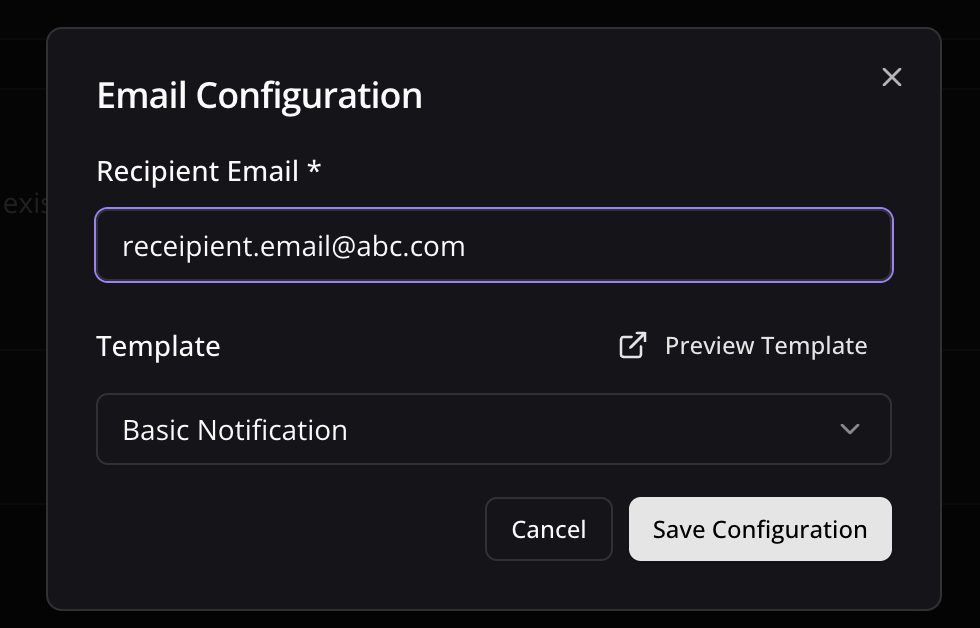
1. Toggle the **Email Notifications** switch to enable email alerts
2. In the dialog box that appears, enter the email address where you want to receive notifications
3. Select an email template from the dropdown menu
4. Click **Preview Template** to see how your notifications will look
5. Use the editor to customize the template if needed
6. Click **Save Configuration** to confirm your settings
Email notifications are perfect for critical alerts that require immediate attention and have lower usage limits. Use it for critical alerts.
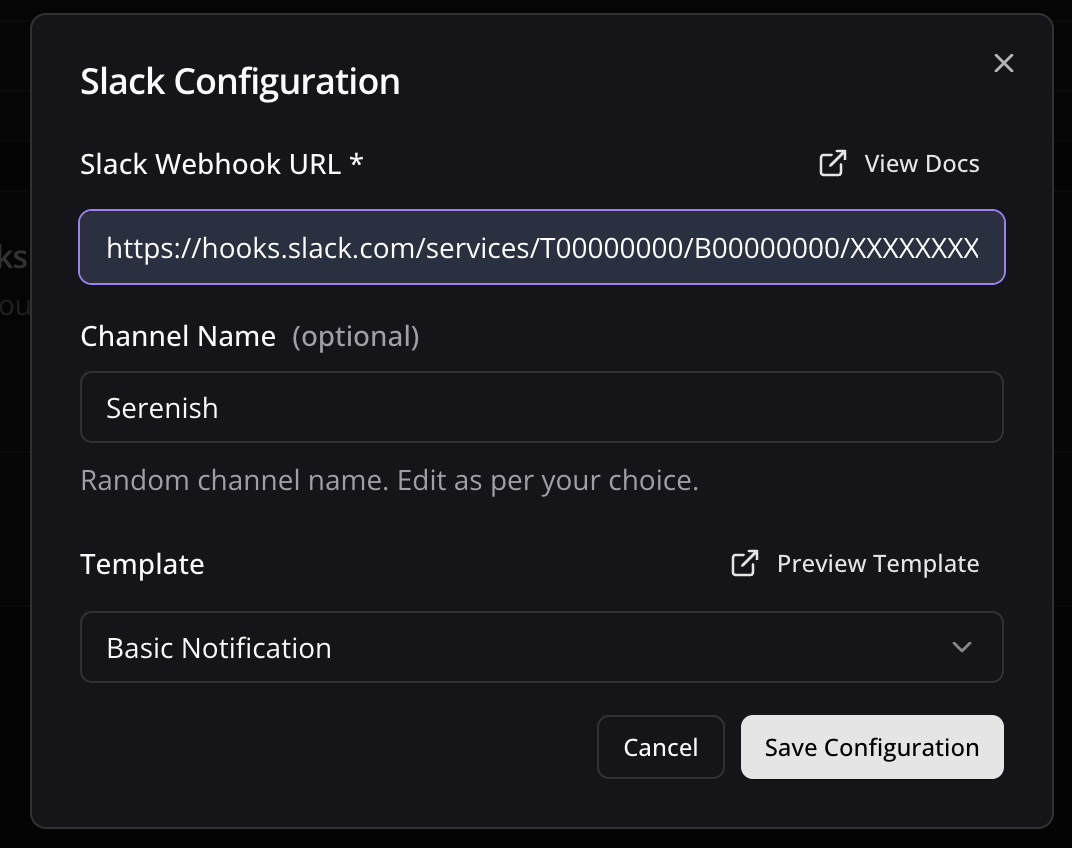
1. Toggle the **Slack Notifications** switch to enable Slack alerts
2. In the dialog box, paste your Slack webhook URL (see [How to Get a Slack Webhook URL](/notification-channels/slack))
3. Keep the randomly generated name or enter a custom one (optional)
4. Select a notification template from the available options
5. Preview and edit the template as needed
6. Click **Save Configuration** to confirm your settings
Slack notifications are ideal for team collaboration and awareness. Highly recommended to use Slack as it has 3x usage limits compared to email.
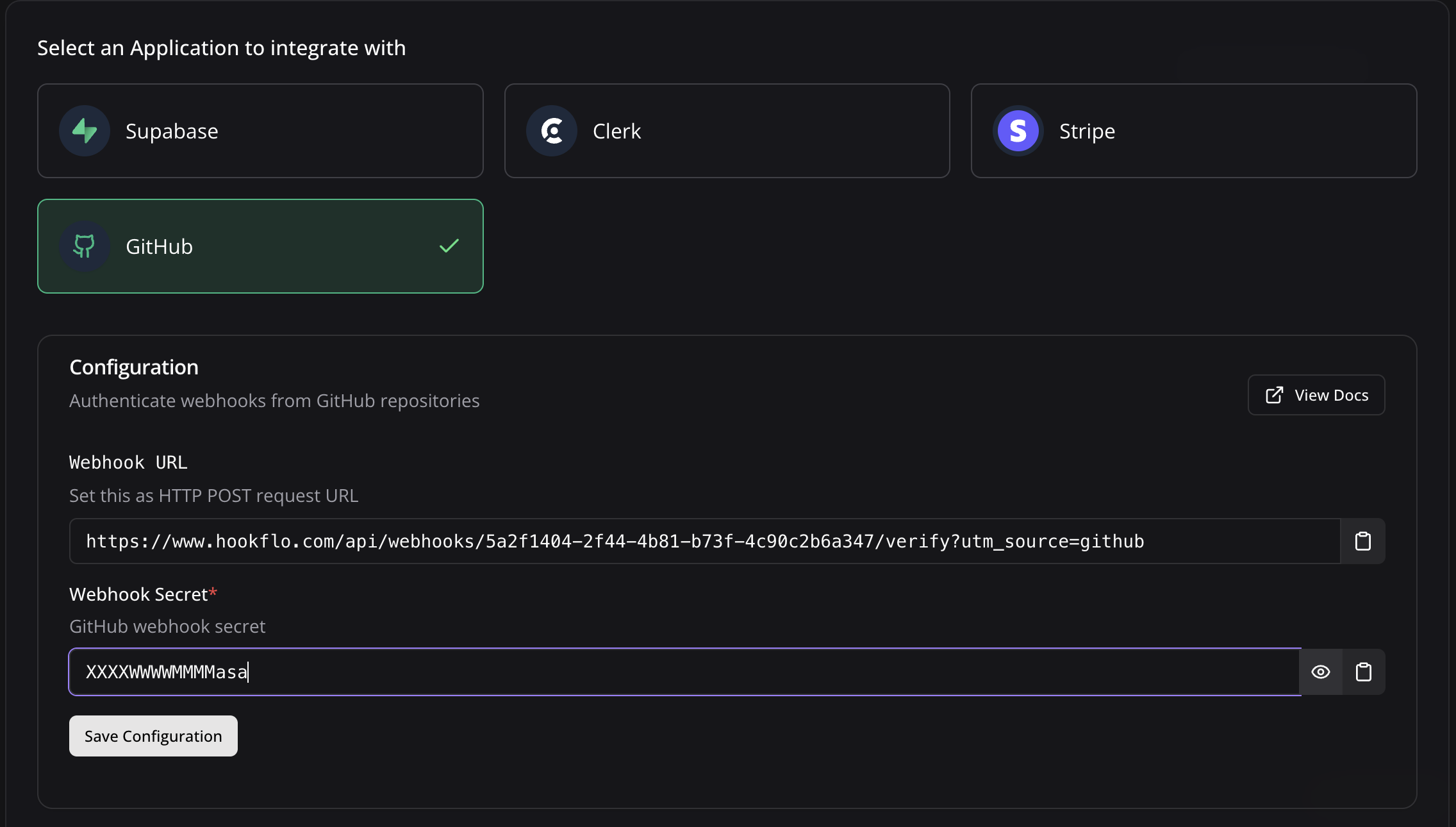
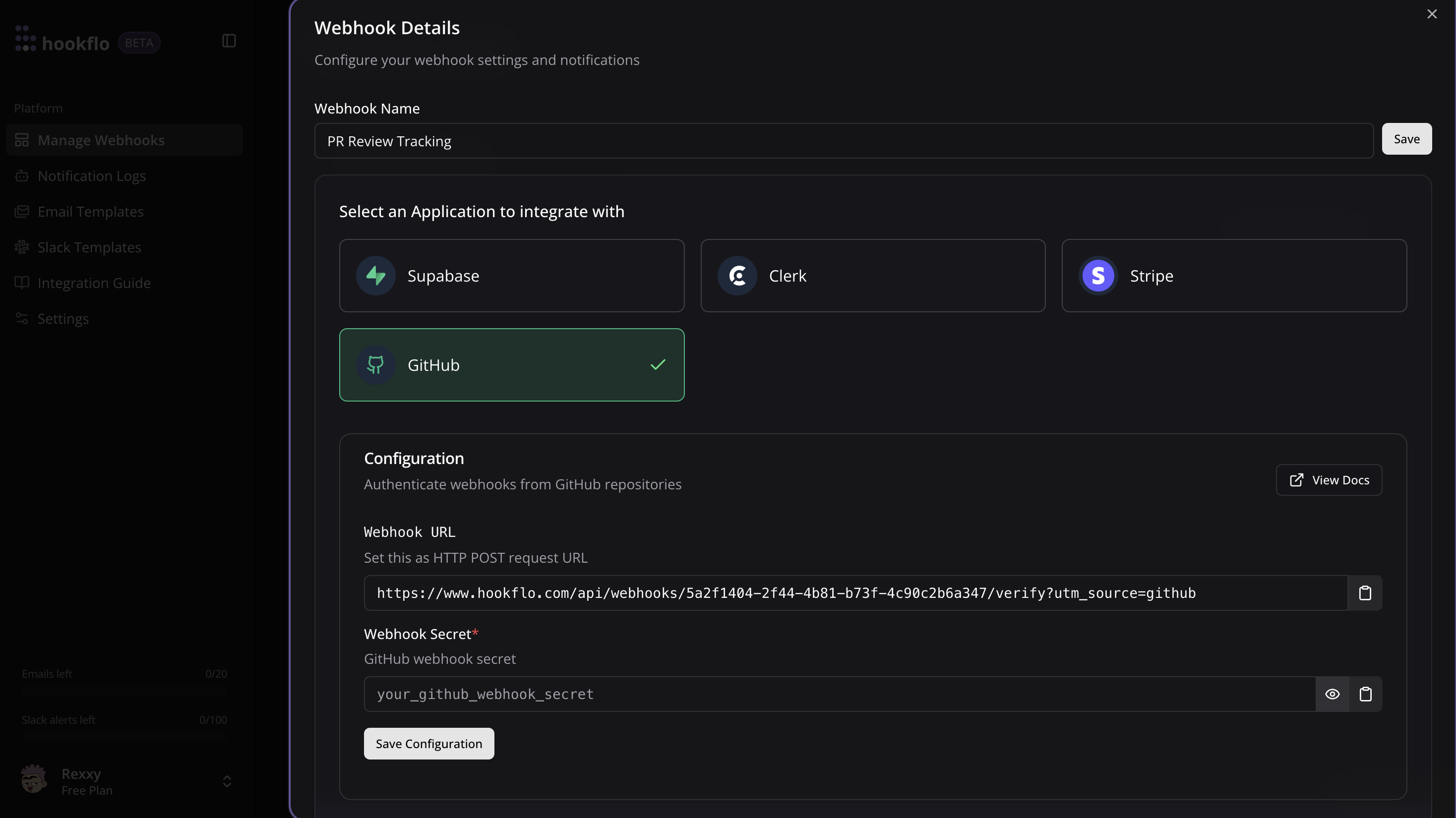
1. Click the **Connect** button to activate your webhook
2. Select **GitHub** as application to integrate
3. A configuration panel will appear with your webhook credentials:
* **Webhook URL**: The HTTP POST request endpoint GitHub will send events to
* **Webhook Secret**: Secret for GitHub to sign webhook payloads (optional)
4. Copy the **Webhook URL** for the next section
You can also configure notification channels from this panel if you haven't done so already.
## Configuring GitHub
Now that your HookFlo webhook is set up, you need to configure GitHub to send events to it:
1. Navigate to your GitHub repository
2. Click on **Settings** in the top navigation bar
3. Select **Webhooks** from the left sidebar
4. Click **Add webhook**
5. Enter your HookFlo webhook URL in the **Payload URL** field
6. Set **Content type** to `application/json`
7. Required to Enter a secret in the **Secret** field
8. Choose which events to trigger the webhook:
* **Just the push event** (default)
* **Send me everything**
* **Let me select individual events**
9. Check the **Active** checkbox to enable the webhook
10. Click **Add webhook** to finalize
If you want to monitor events across all repositories in an organization:
1. Navigate to your GitHub organization
2. Click on **Settings** in the top navigation bar
3. Select **Webhooks** from the left sidebar
4. Click **Add webhook**
5. Enter your HookFlo webhook URL in the **Payload URL** field
6. Set **Content type** to `application/json`
7. Required to Enter a secret in the **Secret** field
8. Choose which events to trigger the webhook:
* **Just the push event** (default)
* **Send me everything**
* **Let me select individual events** (including organization-specific events)
9. Check the **Active** checkbox to enable the webhook
10. Click **Add webhook** to finalize
After creating the webhook in GitHub (If you have added secret in Github):
1. Return to the HookFlo dashboard
2. Navigate to your GitHub webhook configuration
3. Find the "Webhook Secret" field
4. Paste the same secret you entered in GitHub
5. Click **Save Configuration**
This step ensures that HookFlo can verify webhook events are genuinely from GitHub.
## Testing Your Integration
To ensure your integration is working properly:
1. In GitHub, go to your repository or organization's **Webhooks** settings
2. Find your newly created webhook
3. Scroll to the bottom and click **Redeliver** on a recent delivery, or
4. Click **Test** to send a ping event
5. Alternatively, create a real event by pushing code, opening an issue, or creating a pull request
1. Return to your HookFlo dashboard
2. Navigate to [Notification Logs](https://www.hookflo.com/dashboard/logs)
3. You should see the test events appear with details about the changes
4. If you've configured notification channels, check your email or Slack for alerts
This confirms that your GitHub webhook is correctly sending events to HookFlo, and your notification channels are properly configured.
## Supported Events
GitHub supports a wide range of webhook events. Here are the most commonly used categories:
### Code Events
* `push`: When code is pushed to a repository
* `commit_comment`: When a commit is commented on
* `create`: When a branch or tag is created
* `delete`: When a branch or tag is deleted
* `release`: When a release is published, updated, or deleted
### Pull Request Events
* `pull_request`: When a pull request is opened, closed, assigned, labeled, etc.
* `pull_request_review`: When a review is submitted, edited, or dismissed
* `pull_request_review_comment`: When a comment is made on a pull request diff
* `pull_request_review_thread`: When a thread in a pull request review is resolved or unresolved
### Issue Events
* `issues`: When an issue is opened, closed, assigned, labeled, etc.
* `issue_comment`: When a comment is made on an issue or pull request
* `label`: When a label is created, edited, or deleted
### Repository Events
* `repository`: When a repository is created, archived, unarchived, etc.
* `repository_import`: When a repository import is completed, canceled, or failed
* `repository_vulnerability_alert`: When a security vulnerability alert is created, dismissed, or resolved
### GitHub Actions Events
* `workflow_job`: When a workflow job is queued, completed, or failed
* `workflow_run`: When a workflow run is completed
### Organization Events
* `organization`: When an organization is deleted, renamed, or a user is added or removed
* `organization_package`: When a package is published or updated
* `team`: When a team is created, deleted, or modified
* `team_add`: When a repository is added to a team
For a complete list of events, refer to the [GitHub Webhook Events documentation](https://docs.github.com/en/developers/webhooks-and-events/webhooks/webhook-events-and-payloads).
## Webhook Headers
GitHub webhooks include these important headers that HookFlo uses for verification:
* `X-GitHub-Event`: The type of event (e.g., `push`, `pull_request`)
* `X-GitHub-Delivery`: A unique identifier for the delivery
* `X-Hub-Signature-256`: HMAC SHA-256 signature of the payload (if secret configured)
## Webhook Payload Structure
Here's an example of what the webhook payload looks like for a `push` event:
```json theme={null}
{
"ref": "refs/heads/main",
"before": "6113728f27ae82c7b1a177c8d03f9e96e0adf246",
"after": "0000000000000000000000000000000000000000",
"repository": {
"id": 123456,
"node_id": "MDEwOlJlcG9zaXRvcnkxMjM0NTY=",
"name": "my-repo",
"full_name": "username/my-repo",
"private": false,
"owner": {
"name": "username",
"email": "user@example.com",
"login": "username",
"id": 12345
},
"html_url": "https://github.com/username/my-repo",
"description": "Repository description"
},
"pusher": {
"name": "username",
"email": "user@example.com"
},
"sender": {
"login": "username",
"id": 12345,
"node_id": "MDQ6VXNlcjEyMzQ1",
"avatar_url": "https://avatars.githubusercontent.com/u/12345?v=4",
"type": "User"
},
"created": false,
"deleted": true,
"forced": false,
"commits": []
}
```
## Advanced Configuration
HookFlo allows you to fully customize your notification templates:
### Email Template Example for Pull Request:
```
Subject: [GitHub] Pull Request {{action}} by {{sender.login}}
Hello,
A pull request was {{action}} in {{repository.full_name}}:
Title: {{pull_request.title}}
Author: {{pull_request.user.login}}
URL: {{pull_request.html_url}}
{{#if pull_request.body}}
Description:
{{pull_request.body}}
{{/if}}
Best regards,
The HookFlo Team
```
### Slack Template Example for Code Push:
```
*New code pushed to {{repository.full_name}}*
Branch: {{ref}}
Pusher: {{pusher.name}}
{{#each commits}}
• <{{this.url}}|{{truncate this.id 7}}> - {{this.message}} (by {{this.author.name}})
{{/each}}
```
You can use any data from the webhook payload in your templates using Handlebars syntax.
HookFlo allows you to filter events based on their content:
1. Go to **Alert Rules** → **Create Rule**
2. Source: Your GitHub webhook
3. Add conditions like:
* Only alert on pull requests to the main branch:
```json theme={null}
{
"headers.x-github-event": "pull_request",
"pull_request.base.ref": "main"
}
```
* Only alert on failed workflow runs:
```json theme={null}
{
"headers.x-github-event": "workflow_run",
"workflow_run.conclusion": "failure"
}
```
4. Configure your notification channel and template
5. Save the rule
This powerful filtering ensures you only receive alerts for the specific events you care about.
## Example: Pull Request Review Alerts via Slack
Let's set up a complete example of notifying your team when pull requests need review:
1. Follow the steps above to create a repository webhook in GitHub
2. When selecting events, choose **Let me select individual events**
3. Select the following events:
* `Pull request reviews`
* `Pull requests`
4. Set up a secret and add it to both GitHub and HookFlo
1. Create a pull request in your repository
2. Have someone (or yourself) review the PR and request changes
3. Check your Slack channel for the alert
4. Verify the formatting and content match your template
## Example: Critical Issue Alerts via Email
Set up alerts when issues are labeled as "critical" or "bug":
1. Follow the steps above to create a repository webhook in GitHub
2. When selecting events, choose **Let me select individual events**
3. Select the `Issues` event
4. Set up a secret and add it to both GitHub and HookFlo
1. Create an issue in your repository
2. Add the "critical" or "bug" label to the issue
3. Check your email for the alert
4. Verify the formatting and content match your template
## Troubleshooting
If you're seeing webhook verification errors:
1. Double-check that you've entered the exact same secret in both GitHub and HookFlo
2. Ensure there are no extra spaces or special characters in your secret
3. Verify that the Content-Type in GitHub is set to `application/json`
4. Check if you're using the correct HookFlo webhook URL
GitHub's webhook signature is case-sensitive and must match exactly. If you're still having issues, try generating a new secret.
If certain events aren't being received:
1. In GitHub, go to your webhook settings and check the "Recent Deliveries" tab
2. Look for any failed deliveries and check their response codes
3. Verify that you've selected the specific event types in GitHub's webhook configuration
4. Check your HookFlo webhook logs to see if events are being received but filtered out
5. For organization webhooks, ensure the repository is included in the webhook scope
If webhook deliveries are timing out:
1. GitHub expects a response within 10 seconds or it will mark the delivery as failed
2. GitHub will retry failed webhook deliveries up to 3 times
3. Check if your HookFlo webhook is processing events efficiently
4. Consider implementing asynchronous processing for complex event handling
## Security Considerations
When setting up webhook integrations between GitHub and HookFlo, keep these security best practices in mind:
* **Always use a webhook secret**: This prevents unauthorized requests to your webhook endpoint
* **Validate all webhook signatures**: HookFlo does this automatically when you provide your secret
* **Limit the scopes of your webhooks**: Only subscribe to events you actually need
* **Use HTTPS only**: All webhook URLs should use encrypted connections
* **Regularly audit webhook configurations**: Remove unused or outdated webhooks
* **Be careful with sensitive data**: Consider what information is included in your notifications
* **Monitor webhook activity**: Regularly review webhook events for suspicious patterns
## Congratulations! 🎉
You've successfully set up real-time GitHub event tracking and alerting with HookFlo! Your team can now receive immediate notifications about important repository events, helping you respond quickly to critical issues, coordinate code reviews, and stay informed about your project's development activity.
Need more help? [Contact our support team](mailto:team.hookflo@gmail.com) or join our [Discord forum](https://discord.gg/SNmCjU97nr)
or [DM me directly on X](https://x.com/Prateek53788134).
 ## Integration Guide
This guide will walk you through setting up a webhook integration between GitHub and Hookflo, enabling you to receive alerts for repository events like code pushes, pull requests, issues, and more.
## Integration Guide
This guide will walk you through setting up a webhook integration between GitHub and Hookflo, enabling you to receive alerts for repository events like code pushes, pull requests, issues, and more.