> ## Documentation Index
> Fetch the complete documentation index at: https://docs.hookflo.com/llms.txt
> Use this file to discover all available pages before exploring further.

# Clerk

> Set up webhooks to receive notifications for user authentication events from Clerk

<img src="https://mintcdn.com/hookflo/FVKCx30l3CvlX69H/images/clerk_logo.png?fit=max&auto=format&n=FVKCx30l3CvlX69H&q=85&s=6ae6fccbc494ab63fa1a1ab526b4a451" width="400px" height="300px" data-path="images/clerk_logo.png" />

## Integration Guide

This guide will walk you through setting up a webhook integration between Clerk and Hookflo, enabling you to receive alerts for user authentication and management events.

<Note>
  Clerk uses [Svix](https://www.svix.com/) to manage their webhook infrastructure, so the webhooks will include Svix-specific headers that Hookflo will validate.
</Note>

## Prerequisites

* A Hookflo account with an active project
* A Clerk account with admin access to your application
* Basic understanding of Clerk's authentication system

## Integration Overview

The integration process follows these key steps:

1. Set up a webhook in Hookflo
2. Configure notification channels (email/Slack)
3. Connect Clerk to Hookflo
4. Configure Clerk to send webhooks
5. Test the integration

## Setting Up Your Hookflo Webhook

After logging into Hookflo, follow these steps to create and configure your Clerk webhook:

<Steps>
  <Step title="Create a Webhook">
    <Accordion title="Setting Up Your Webhook Endpoint">
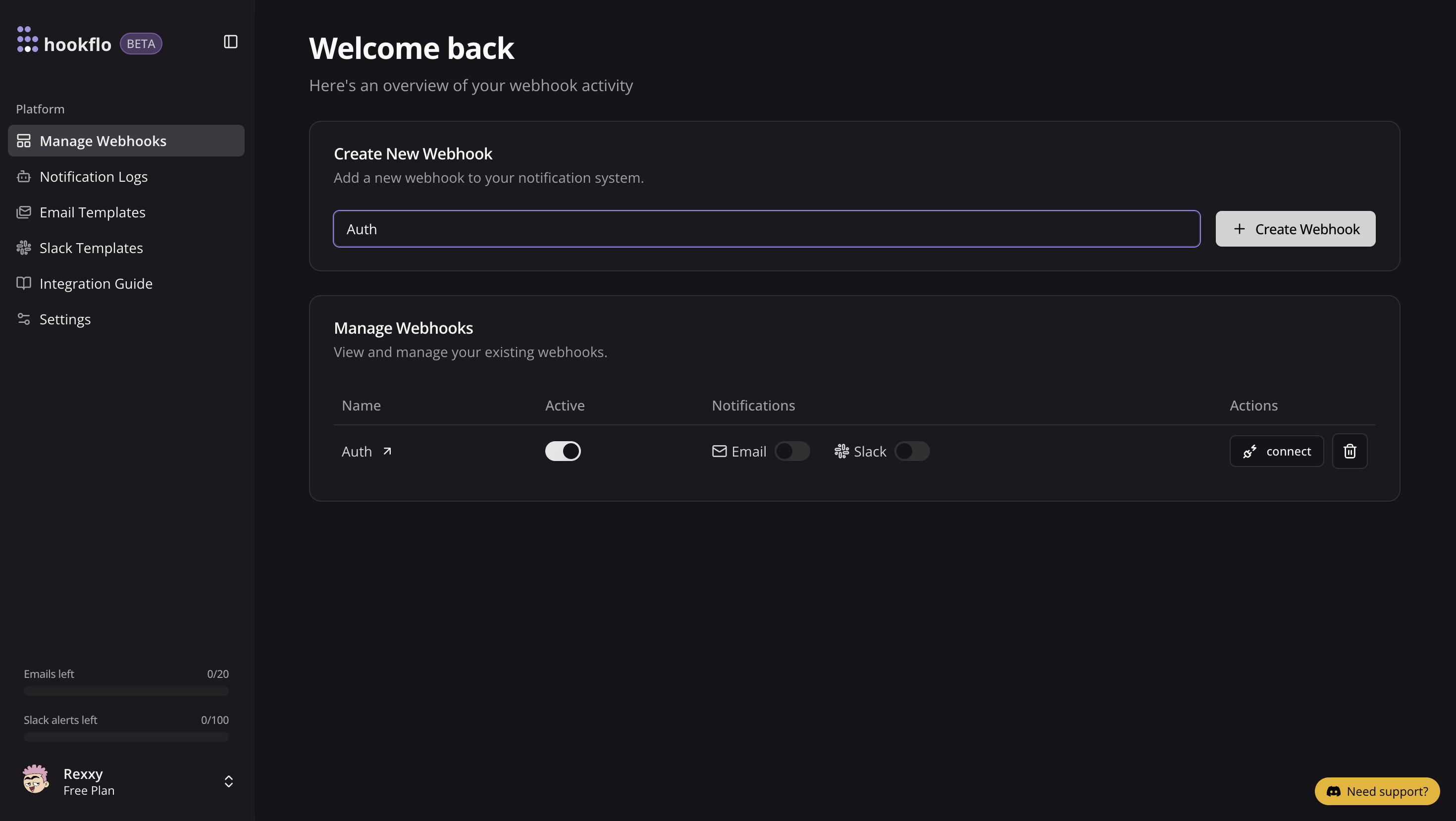
      1. From your [Hookflo Dashboard](https://www.hookflo.com/dashboard/webhooks), navigate to > **Manage Webhooks**
      2. Click on **+ Create Webhook**
      3. Your webhook will be created in an inactive state by default

      Once created, you'll see your webhook in manage webhooks table.

      <div className="w-full">
        <img src="https://mintcdn.com/hookflo/FVKCx30l3CvlX69H/supabase/create-webhook-hookflo.png?fit=max&auto=format&n=FVKCx30l3CvlX69H&q=85&s=760db365c8dc70eea027c9de9643fe55" alt="Create Webhook Screen" width="2940" height="1658" data-path="supabase/create-webhook-hookflo.png" />
      </div>
    </Accordion>
  </Step>

  <Step title="Setup Notification Channel">
    <Accordion title="Configure Email Notifications">
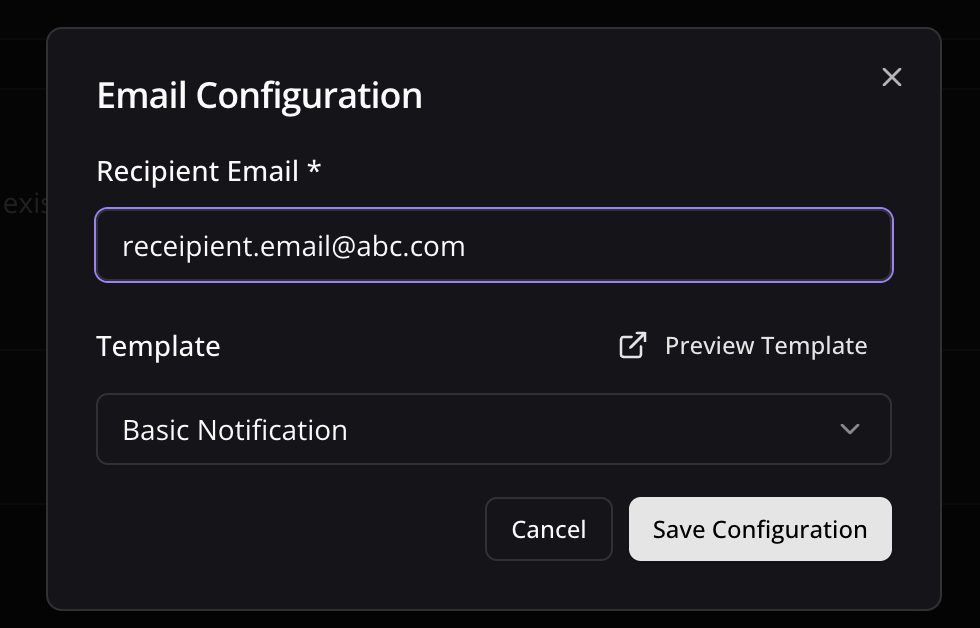
      1. Toggle the **Email Notifications** switch to enable email alerts
      2. In the dialog box that appears, enter the email address where you want to receive notifications
      3. Select an email template from the dropdown menu
      4. Click **Preview Template** to see how your notifications will look
      5. Use the editor to customize the template if needed
      6. Click **Save Configuration** to confirm your settings

      Email notifications are perfect for critical alerts that require immediate attention and have lower usage limits. Use it for critical alerts.

      <div className="w-full">
        <img src="https://mintcdn.com/hookflo/FVKCx30l3CvlX69H/supabase/email-configuration.png?fit=max&auto=format&n=FVKCx30l3CvlX69H&q=85&s=041f33a2f6d8eeb3542c69b8dd4643a4" alt="Email Configuration Dialog" width="980" height="628" data-path="supabase/email-configuration.png" />
      </div>
    </Accordion>

    <Accordion title="Configure Slack Notifications">
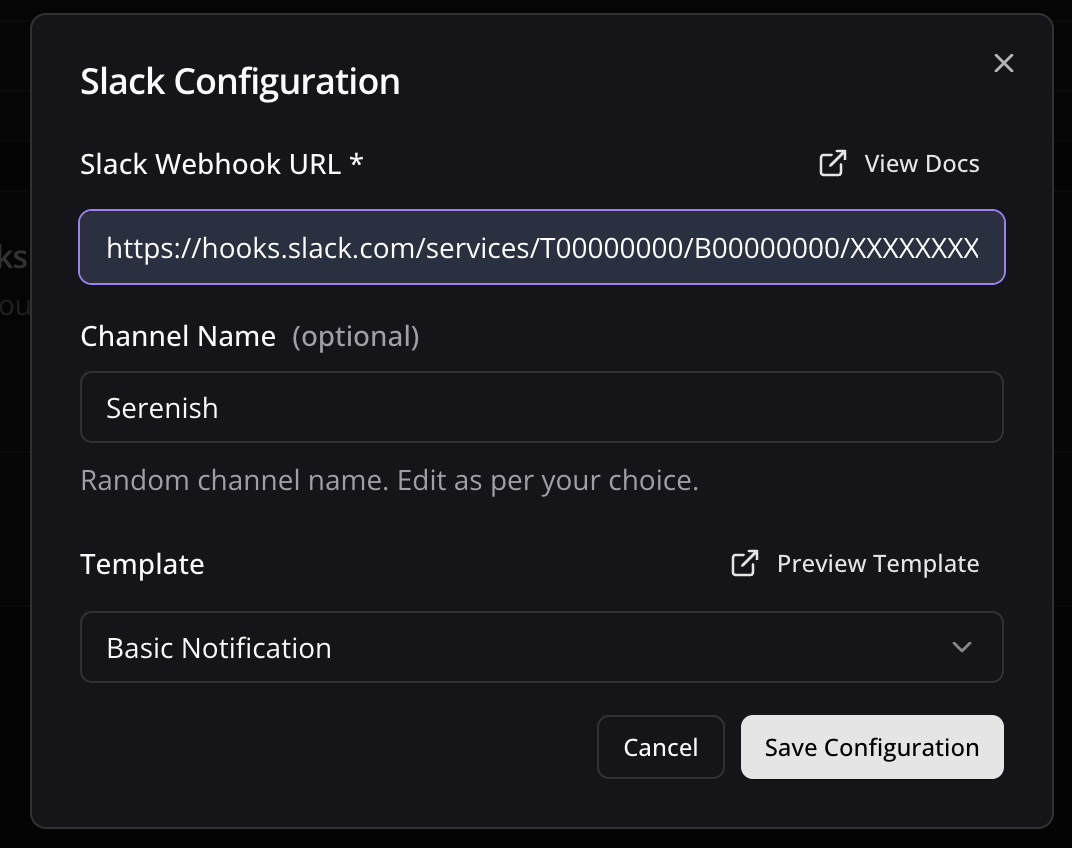
      1. Toggle the **Slack Notifications** switch to enable Slack alerts
      2. In the dialog box, paste your Slack webhook URL (see [How to Get a Slack Webhook URL](/notification-channels/slack))
      3. Keep the random generated name or enter a custom one (optional)
      4. Select a notification template from the available options
      5. Preview and edit the template as needed
      6. Click **Save Configuration** to confirm your settings

      Slack notifications are ideal for team collaboration and awareness. Highly recommended to use Slack as it has 3x usage limits compared to email.

      <div className="w-full">
        <img src="https://mintcdn.com/hookflo/FVKCx30l3CvlX69H/supabase/slack-configuration.png?fit=max&auto=format&n=FVKCx30l3CvlX69H&q=85&s=b93dde6c8c71eb14a3191202f6e4644c" alt="Slack Configuration Dialog" width="1072" height="848" data-path="supabase/slack-configuration.png" />
      </div>
    </Accordion>
  </Step>

  <Step title="Connect your Webhook with application">
    <Accordion title="Configure Application">
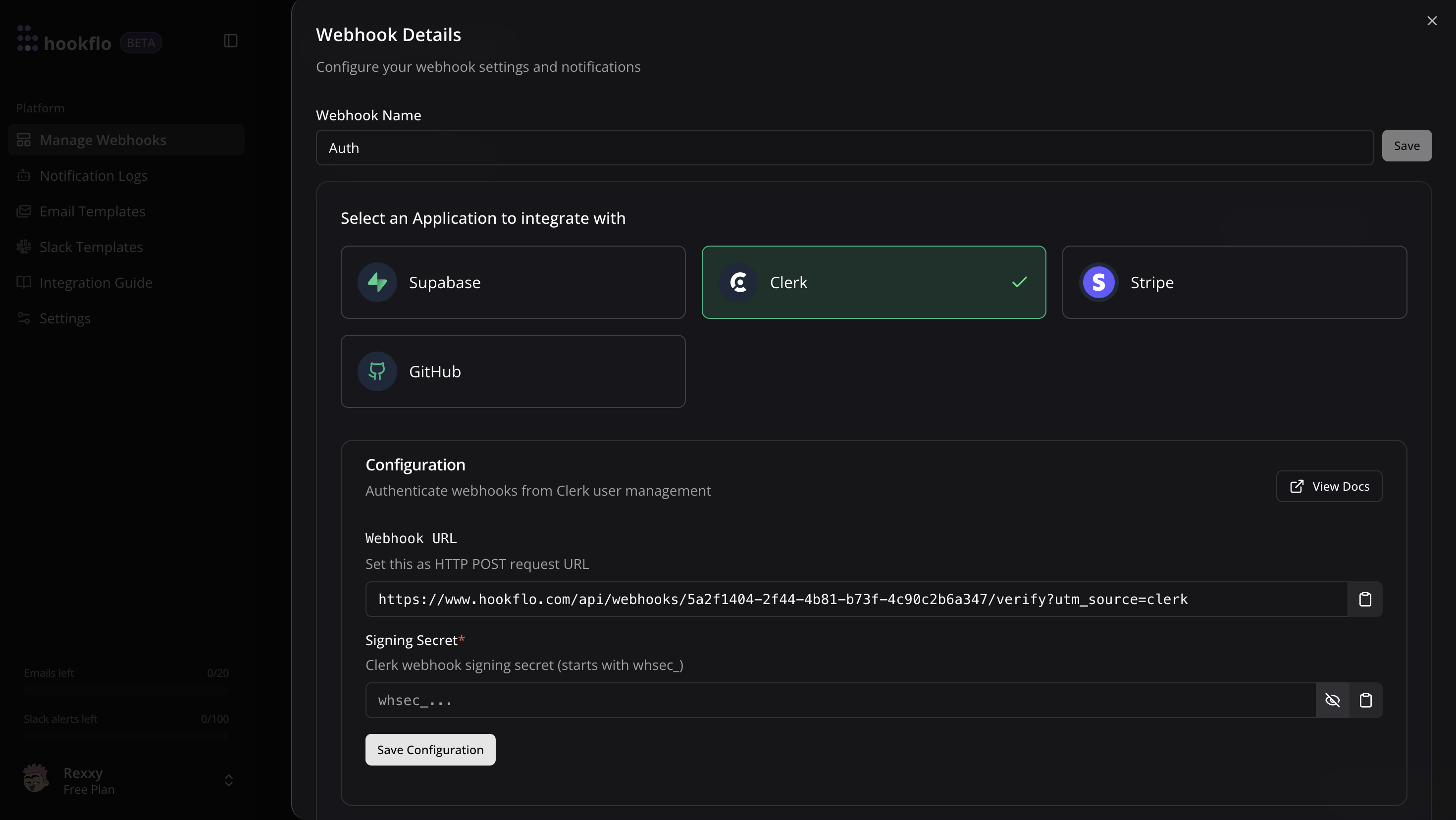
      1. Click the **Connect** button to activate your webhook
      2. Select **Clerk** as application to integrate
      3. A configuration panel will appear with your webhook credentials:
         * **Webhook URL**: The HTTP POST request endpoint Clerk will send events to
         * **Signing Secret**: Signing Secret generated by Clerk
      4. You'll need to add your Clerk Signing Secret in the next steps
      5. Copy the **Webhook URL** for the next section

      You can also configure notification channels from this panel if you haven't done so already.

      <div className="w-full">
        <img src="https://mintcdn.com/hookflo/FVKCx30l3CvlX69H/clerk-hookflo-config.png?fit=max&auto=format&n=FVKCx30l3CvlX69H&q=85&s=8b93045f7ceff2889e951826b29706c1" alt="Connection Configuration Panel" width="2940" height="1656" data-path="clerk-hookflo-config.png" />
      </div>
    </Accordion>
  </Step>
</Steps>

## Configuring Clerk

Now that your HookFlo webhook is set up, you need to configure Clerk to send events to it:

<Steps>
  <Step title="Create a Webhook Endpoint in Clerk">
    <Accordion title="Configuring Clerk to Send Webhooks">
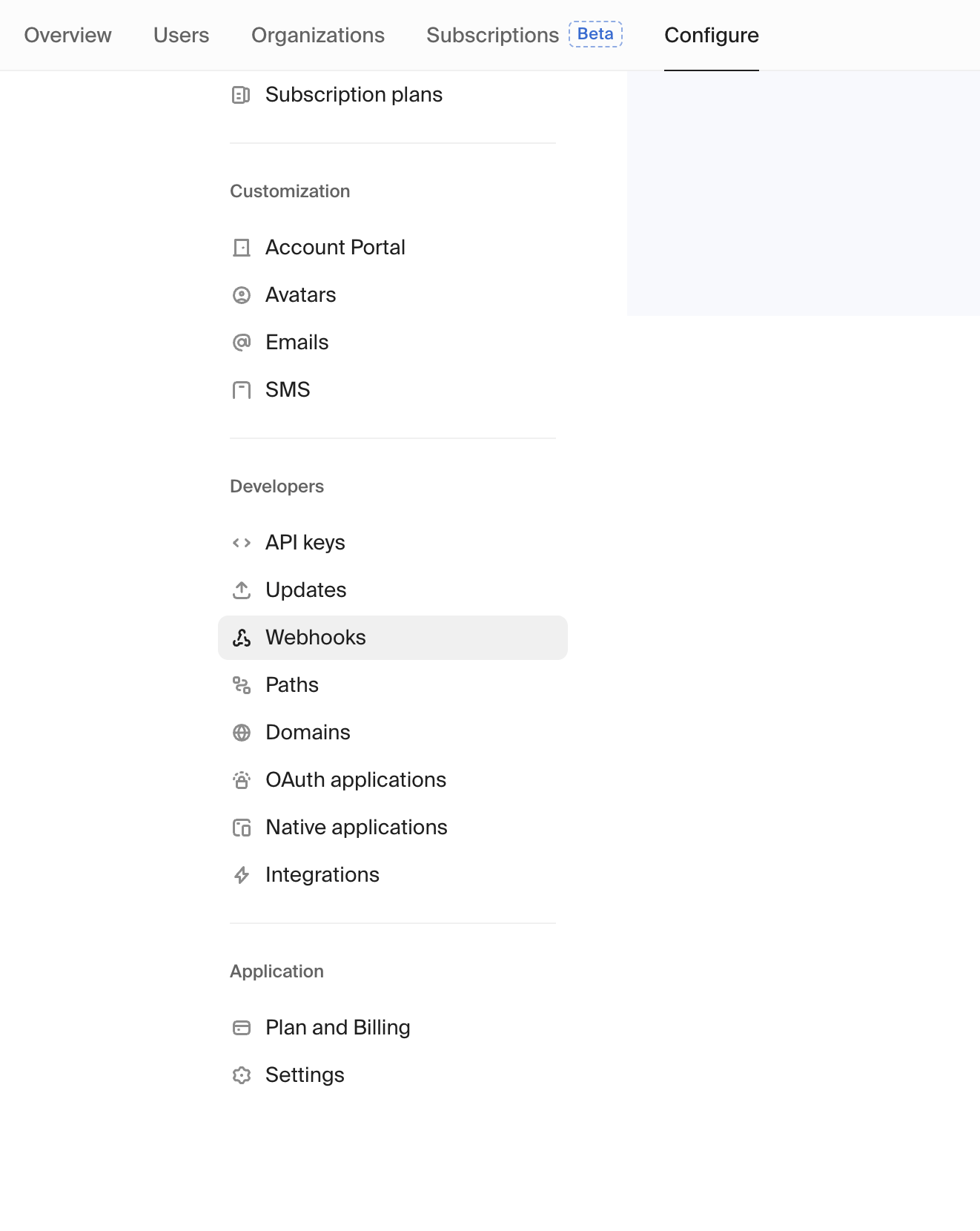
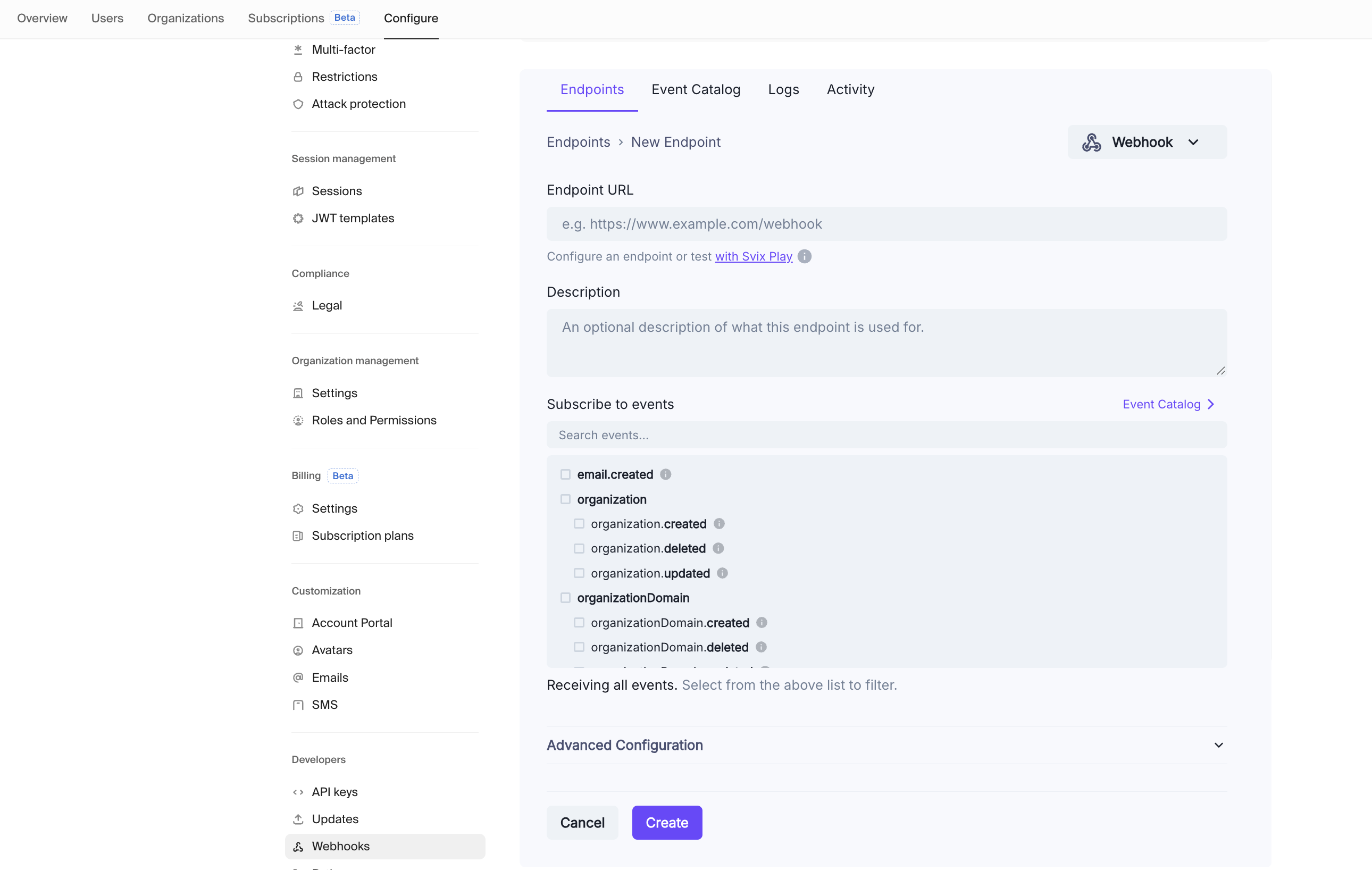
      1. Log in to your [Clerk Dashboard](https://dashboard.clerk.dev/)
      2. Select your application
      3. Navigate to  **Configure Tab** > **Select** **Webhooks** in the left sidebar
      4. Click **Add Endpoint**
      5. Enter your HookFlo webhook URL that you copied from the previous step
      6. Under **Message filtering**, select the events you want to monitor:
         * For user events: `user.created`, `user.updated`, `user.deleted`, etc.
         * For session events: `session.created`, `session.removed`, etc.
         * For authentication events: `emailAddress.verified`, `password.reset`, etc.
      7. Click **Create**

      <div className="w-full">
        <img src="https://mintcdn.com/hookflo/FVKCx30l3CvlX69H/choose-webhooks-nav.png?fit=max&auto=format&n=FVKCx30l3CvlX69H&q=85&s=7c50a69a2439b11a273a0b3d2c91d05f" alt="Clerk Webhook Configuration" width="1322" height="1660" data-path="choose-webhooks-nav.png" />

        <img src="https://mintcdn.com/hookflo/FVKCx30l3CvlX69H/images/select-even-and-create.png?fit=max&auto=format&n=FVKCx30l3CvlX69H&q=85&s=35573ed486c1879f57f9de233f72f46a" alt="Select Even And Create Pn" width="2580" height="1636" data-path="images/select-even-and-create.png" />
      </div>
    </Accordion>
  </Step>

  <Step title="Get Signing Secret from Clerk">
    <Accordion title="Obtaining Your Signing Secret">
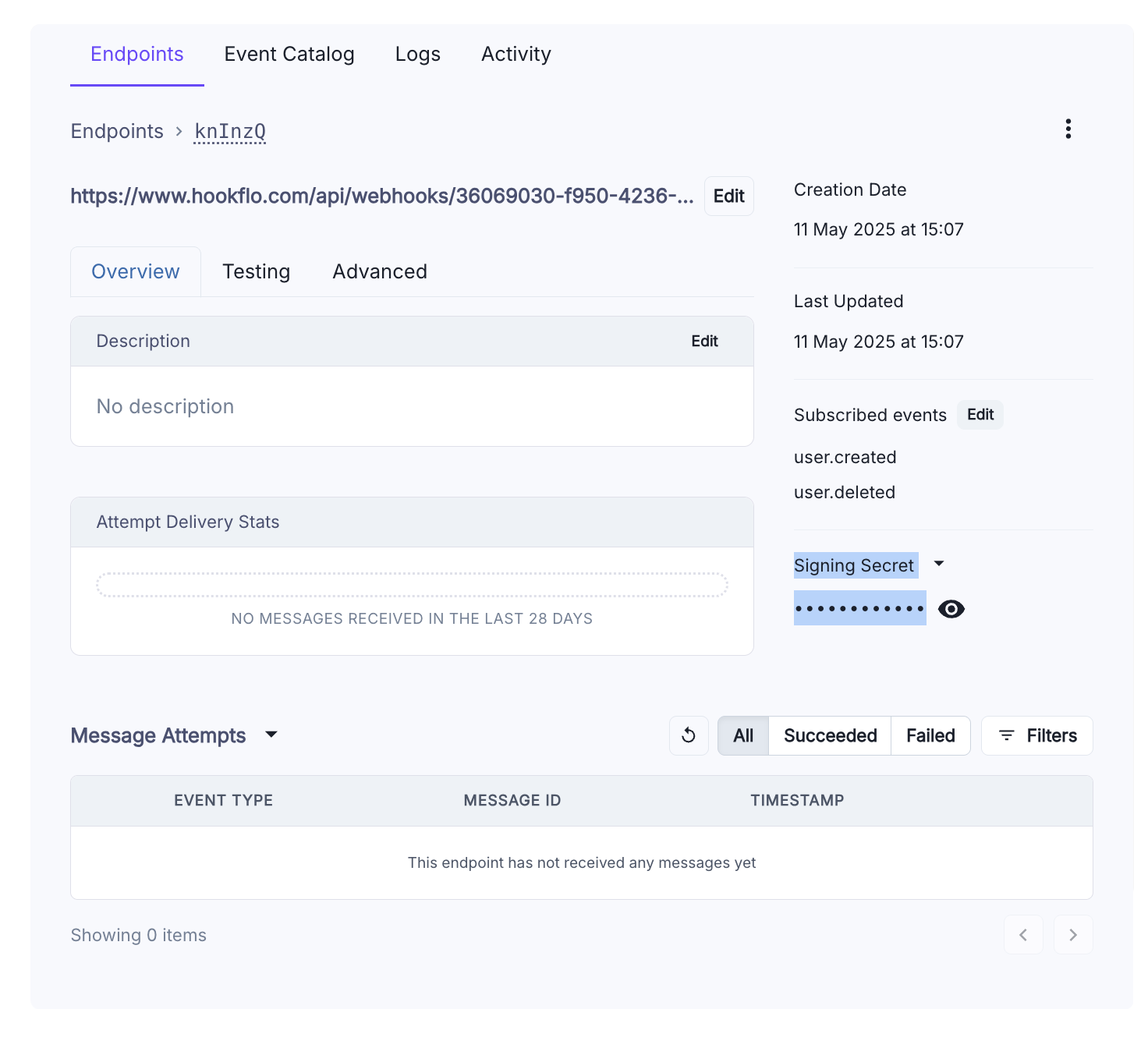
      After creating the webhook endpoint in Clerk:

      1. In your Clerk dashboard, find your newly created webhook endpoint
      2. Locate the **Signing Secret** section
      3. Click **Reveal** to view the secret
      4. Copy the signing secret

      This secret is crucial for verifying that webhook events are genuinely from Clerk.

      <div className="w-full">
        <img src="https://mintcdn.com/hookflo/FVKCx30l3CvlX69H/get-clerk-secret.png?fit=max&auto=format&n=FVKCx30l3CvlX69H&q=85&s=c0bd5395b52d90bf002f13043a38a3da" alt="Clerk Signing Secret" width="1472" height="1344" data-path="get-clerk-secret.png" />
      </div>
    </Accordion>
  </Step>

  <Step title="Configure Webhook Verification in HookFlo">
    <Accordion title="Setting Up Webhook Verification">
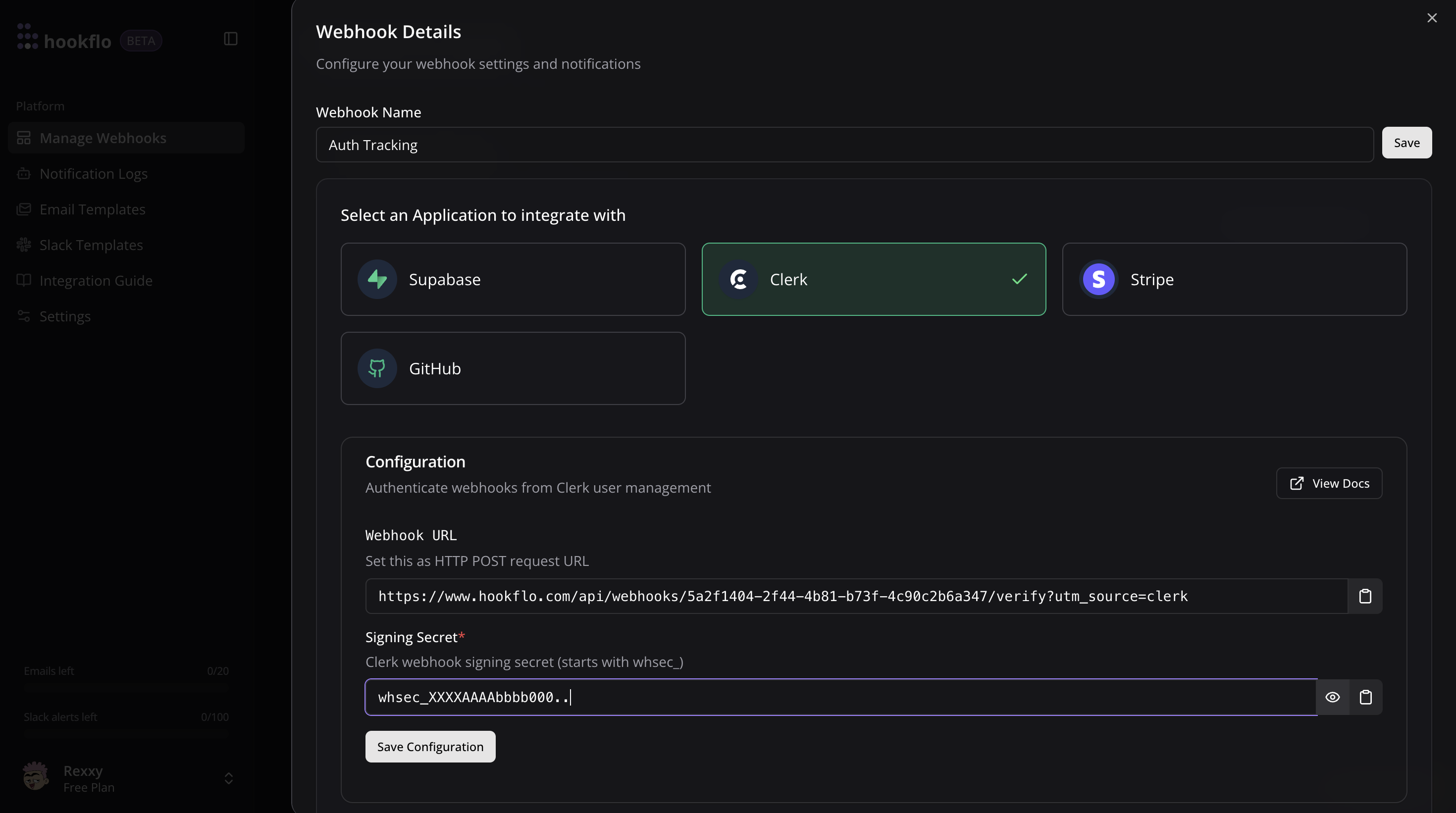
      1. Return to the HookFlo dashboard
      2. Navigate to your Clerk webhook configuration
      3. Find the "Signing Secret" field
      4. Paste the Clerk signing secret you copied
      5. Click **Save Configuration**

      This step completes the secure connection between Clerk and HookFlo.

      <div className="w-full">
        <img src="https://mintcdn.com/hookflo/FVKCx30l3CvlX69H/clerk-secret-config.png?fit=max&auto=format&n=FVKCx30l3CvlX69H&q=85&s=02c61bb27b5e737ec0cb1e5b8ec0b922" alt="HookFlo Signing Secret Configuration" width="2940" height="1642" data-path="clerk-secret-config.png" />
      </div>
    </Accordion>
  </Step>
</Steps>

## Testing Your Integration

To ensure your integration is working properly:

<Steps>
  <Step title="Test the Webhook in Clerk">
    <Accordion title="Generating Test Events">
      1. In the Clerk dashboard, find your webhook endpoint
      2. Click **Send test event**
      3. Select an event type (e.g., `user.created`)
      4. Click **Send test** to deliver a sample webhook to HookFlo

      <div className="w-full">
        <img src="https://mintlify.s3.us-west-1.amazonaws.com/hookflo/clerk/clerk-test-webhook.png" alt="Clerk Test Webhook" />
      </div>
    </Accordion>
  </Step>

  <Step title="Verify in HookFlo">
    <Accordion title="Validate Alert Delivery">
      <div className="flex gap-8">
        <div className="flex-1">
          1. Return to your HookFlo dashboard
          2. Navigate to [Notification Logs](https://www.hookflo.com/dashboard/logs)
          3. You should see the test events appear with details about the changes
          4. If you've configured notification channels, check your email or Slack for alerts

          This confirms that your Clerk webhook is correctly sending events to HookFlo, and your notification channels are properly configured.
        </div>

        <div className="w-2/5">
          <img src="https://mintlify.s3.us-west-1.amazonaws.com/hookflo/event-logs.png" alt="Event Logs in HookFlo" />
        </div>
      </div>
    </Accordion>
  </Step>
</Steps>

## Supported Events

Clerk supports a wide range of webhook events. Here are the most commonly used categories:

### User Events

* `user.created`: When a new user is created
* `user.updated`: When user details are changed
* `user.deleted`: When a user is deleted
* `user.locked`: When a user account is locked

### Session Events

* `session.created`: When a user signs in
* `session.removed`: When a user signs out
* `session.ended`: When a session expires

### Authentication Events

* `emailAddress.created`: When an email address is added
* `emailAddress.verified`: When an email is verified
* `phoneNumber.created`: When a phone number is added
* `phoneNumber.verified`: When a phone is verified
* `password.created`: When a password is set
* `password.reset`: When a password is reset

### Organization Events

* `organization.created`: When a new organization is created
* `organization.updated`: When an organization is updated
* `organization.deleted`: When an organization is deleted
* `organizationMembership.created`: When a user joins an organization
* `organizationMembership.deleted`: When a user leaves an organization

For a complete list of events, refer to the [Clerk Webhook Events documentation](https://clerk.com/docs/webhooks/overview).

## Webhook Headers

Clerk webhooks include these important headers that HookFlo uses for verification:

* `svix-id`: A unique identifier for the webhook event
* `svix-timestamp`: When the webhook was sent
* `svix-signature`: A signature that proves the webhook came from Clerk

## Webhook Payload Structure

Here's an example of what the webhook payload looks like for a `user.created` event:

```json theme={null}
{
  "data": {
    "id": "user_2NZrMxLQOI49IM9xmLMBB6yrY7L",
    "first_name": "John",
    "last_name": "Doe",
    "email_addresses": [
      {
        "id": "idn_2NZrMxWEDc8XVtCyD6ULe9YNdGX",
        "email_address": "john@example.com",
        "verification": {
          "status": "verified",
          "strategy": "email_code"
        }
      }
    ],
    "created_at": 1645131680,
    "updated_at": 1645131680
  },
  "object": "event",
  "type": "user.created"
}
```

## Advanced Configuration

<AccordionGroup>
  <Accordion title="Customizing Notification Templates">
    HookFlo allows you to fully customize your notification templates:

    ### Email Template Example:

    ```
    Subject: [{{type}}] Clerk Auth Event

    Hello,

    The following {{type}} event occurred:

    User: {{#if data.first_name}}{{data.first_name}} {{data.last_name}}{{else}}New User{{/if}}
    Email: {{#if data.email_addresses.[0]}}{{data.email_addresses.[0].email_address}}{{/if}}
    Time: {{data.created_at | date}}

    Best regards,
    The HookFlo Team
    ```

    ### Slack Template Example:

    ```
    *{{type}} Event*

    User: {{#if data.first_name}}{{data.first_name}} {{data.last_name}}{{else}}New User{{/if}}
    Email: {{#if data.email_addresses.[0]}}{{data.email_addresses.[0].email_address}}{{/if}}
    User ID: {{data.id}}
    Time: {{data.created_at | date}}
    ```

    You can use any data from the webhook payload in your templates.
  </Accordion>

  <Accordion title="Handling Test vs. Production Events">
    Clerk allows you to differentiate between test and production environments:

    1. Set up separate webhooks in HookFlo for test and production environments
    2. Use clear naming conventions to distinguish between test and production webhooks
    3. Configure different notification channels for test vs. production events

    This separation helps prevent confusion between test data and real user events.
  </Accordion>
</AccordionGroup>

## Troubleshooting

<AccordionGroup>
  <Accordion title="Webhook Verification Failures">
    If you're seeing webhook verification errors:

    1. Double-check that you've entered the correct signing secret in HookFlo
    2. Ensure the secret is from the same endpoint where you configured the HookFlo URL
    3. Check if the signing secret has been rotated in Clerk recently
    4. Verify your server's clock is accurately synchronized (time drift can cause verification failures)
  </Accordion>

  <Accordion title="Missing Events">
    If certain events aren't being received:

    1. Verify that you've selected those specific event types in Clerk's webhook configuration
    2. Check Clerk's webhook delivery logs to confirm they're being sent
    3. Ensure your HookFlo webhook is active and properly configured
  </Accordion>

  <Accordion title="Webhook Timeouts">
    If webhook deliveries are timing out:

    1. Check Clerk's webhook logs for timeout errors
    2. Consider implementing webhook retries in Clerk's settings
    3. Contact HookFlo support if the issue persists
  </Accordion>
</AccordionGroup>

## Example: Monitoring New User Signups

Here's a complete example of setting up HookFlo to alert your team when new users sign up:

<Steps>
  <Step title="Create the Webhook in HookFlo">
    Follow the steps above to create a Clerk webhook in HookFlo and configure your notification channels.
  </Step>

  <Step title="Configure Clerk to Send User Events">
    1. In your Clerk dashboard, go to **Webhooks**
    2. Create a new webhook using your HookFlo webhook URL
    3. Select the `user.created` event type
    4. Copy your webhook signing secret
    5. Add the signing secret to your HookFlo Clerk configuration
  </Step>

  <Step title="Test With a New User">
    1. Create a new test user in your Clerk application
    2. Check your configured notification channels for alerts
    3. Verify the event appears in your HookFlo notification logs
  </Step>
</Steps>

## Security Considerations

When setting up webhook integrations between Clerk and HookFlo, keep these security best practices in mind:

* **Protect your signing secret**: Never expose the Clerk signing secret in client-side code
* **Validate all webhooks**: Always use the signing secret to verify webhook authenticity
* **Use HTTPS only**: Ensure all webhook URLs use encrypted connections
* **Implement proper access controls**: Limit who can view sensitive user information
* **Monitor webhook activity**: Regularly review webhook events for suspicious patterns

## Congratulations! 🎉

You've successfully set up real-time authentication event tracking and alerting between Clerk and HookFlo in just a few minutes. Your team can now receive immediate notifications about important user events, helping you respond quickly to critical situations.

Need more help? [Contact our support team](mailto:team.hookflo@gmail.com) or join our [Discord forum](https://discord.gg/SNmCjU97nr)
or [DM me directly on X](https://x.com/Prateek53788134).