> ## Documentation Index
> Fetch the complete documentation index at: https://docs.hookflo.com/llms.txt
> Use this file to discover all available pages before exploring further.
# Slack
> Set up Slack as a notification channel for your webhook alerts using the new simplified integration
## Slack Integration Guide
This guide will help you set up Slack as a notification channel in Hookflo, allowing you to receive real-time alerts in your team's Slack workspace when webhook events are triggered.
Hookflo now provides a simplified one-click Slack integration that automatically handles permissions and setup. Connect once and use across all your webhooks.
##
## Quick Integration (Recommended)
You can connect your Slack workspace from two places:
**Option 1: From Profile Settings**
1. Navigate to your Profile → Settings → Integrations
2. Find the Slack integration section
3. Click the **"Add to Slack"** button
4. Authorize Hookflo in your Slack workspace
5. Once connected, this workspace will be available for all your webhooks
**Option 2: From Webhook Configuration**
1. Go to your webhook's notification settings
2. Look for the Slack notification option
3. Click **"Add to Slack"** if not already connected
4. Complete the authorization process
Both methods work identically - connect once and use everywhere.
1. In your webhook's notification settings, toggle **Slack notifications ON**
2. Select which channel should receive alerts from the dropdown
3. If your desired channel doesn't appear:
* Go to that Slack channel
* Type `/invite @Hookflo` to invite the bot
* The channel will then appear in the dropdown
4. Save your settings
**Key Points:**
* Each webhook can send alerts to different channels
* Private channels need the Hookflo bot invited to be selectable
* One workspace connection works for all webhooks
1. Use the test feature in your webhook configuration
2. Send a test alert to verify it appears in your selected Slack channel
3. Customize message templates using the Slack template builder if needed
Your Slack integration is now ready to receive real-time webhook alerts!
## Managing Your Connection
### Workspace Management
* Only one Slack workspace can be connected at a time
* Change workspaces anytime from Profile Settings → Integrations
* Switching workspaces applies to all webhooks but requires reconfiguring channel selections
### Permissions
Hookdlo requests minimal permissions:
* `chat:write` - Send alerts to channels
* `channels:read` - List available channels
* `groups:read` - Access private channels when invited
### Channel Access
If a channel is disabled or missing from the dropdown:
1. Go to the Slack channel
2. Type `/invite @Hookflo`
3. The channel will become available for selection
***
## Legacy Integration Method
The following method is not supported now. Use the simplified method above instead.
### Manual Webhook Setup (Legacy)
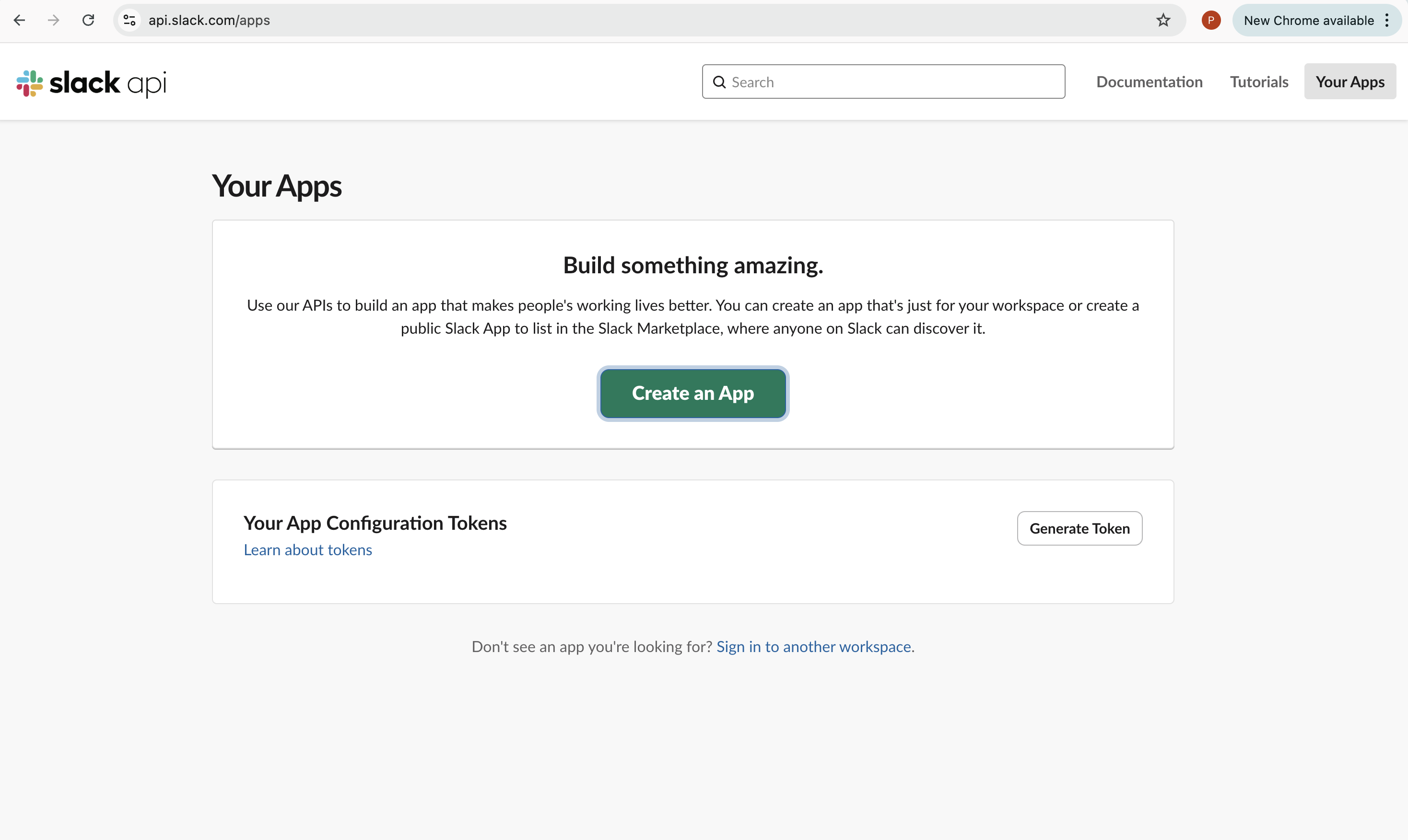
1. Visit the [Slack API website](https://api.slack.com/apps) and sign in with your Slack account
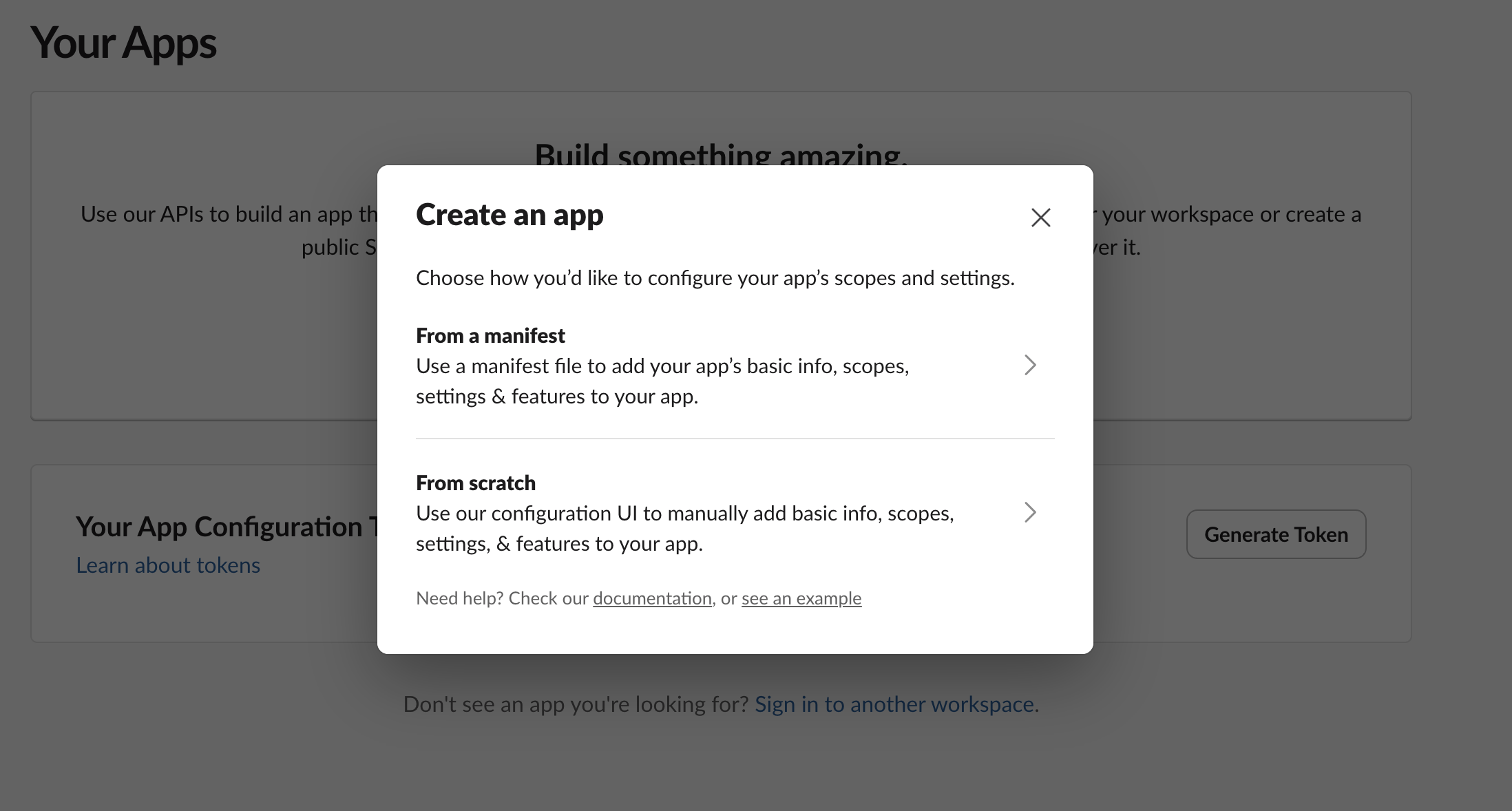
2. Click **Create New App**
3. Select **From scratch**
4. Enter a name for your app (e.g., "Hookflo Notifications")
5. Select the workspace where you want to receive notifications
6. Click **Create App**
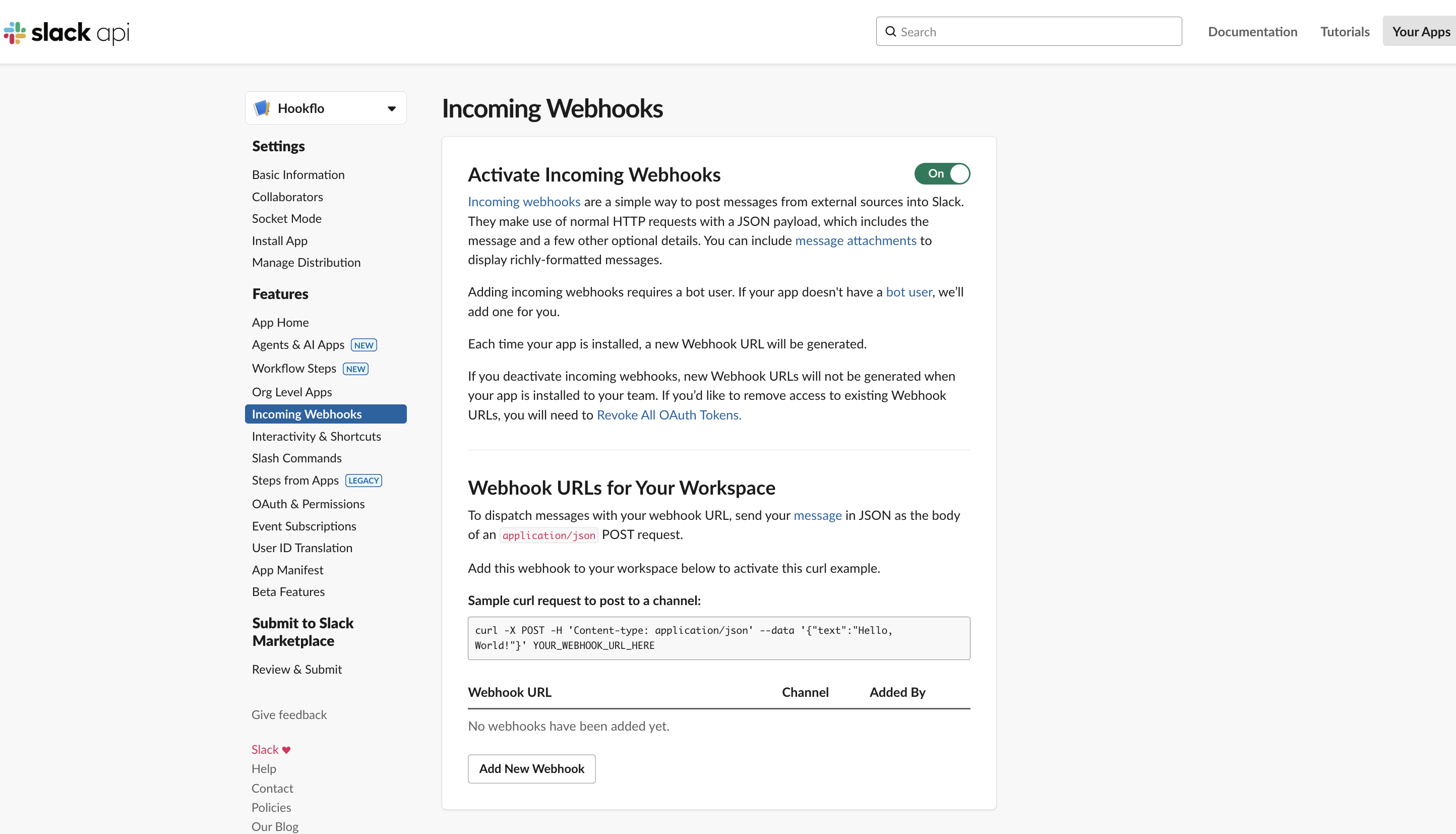
 1. In the left sidebar of your Slack app dashboard, click on **Incoming Webhooks**
2. Toggle the switch to **On** to activate Incoming Webhooks
3. Click **Add New Webhook to Workspace**
4. Select the Slack channel where you want to receive notifications
5. Click **Allow** to authorize the webhook
6. You'll be redirected back to the Incoming Webhooks page
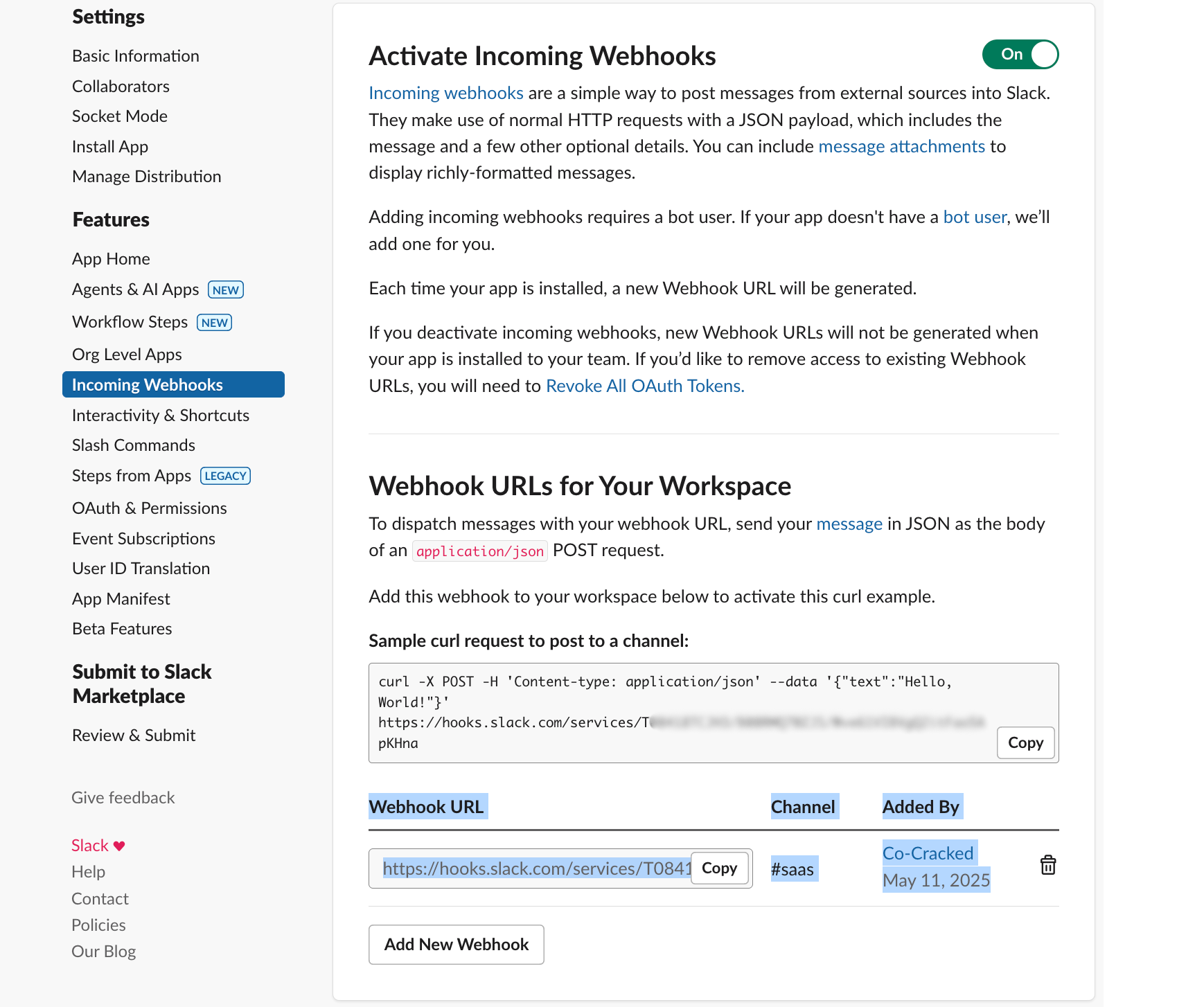
7. Copy the generated **Webhook URL** (it will look like `https://hooks.slack.com/services/T00000000/B00000000/XXXXXXXXXXXXXXXXXXXXXXXX`)
1. In the left sidebar of your Slack app dashboard, click on **Incoming Webhooks**
2. Toggle the switch to **On** to activate Incoming Webhooks
3. Click **Add New Webhook to Workspace**
4. Select the Slack channel where you want to receive notifications
5. Click **Allow** to authorize the webhook
6. You'll be redirected back to the Incoming Webhooks page
7. Copy the generated **Webhook URL** (it will look like `https://hooks.slack.com/services/T00000000/B00000000/XXXXXXXXXXXXXXXXXXXXXXXX`)
 1. Log in to your Hookflo dashboard
2. Choose a webhook to Configure Notifications.
3. Navigate to **Notification Channels** > **Add Channel**
4. Select **Slack** from the available channels
5. Give your notification channel a descriptive name (e.g., "Product Team Alerts")
6. Paste the Slack Webhook URL you copied earlier
7. Configure notification preferences:
* **Default Username**: Set the display name for notifications (e.g., "Hookflo Alerts")
* **Default Icon**: Enter a URL for a custom icon or use emoji codes like `:bell:`
* **Message Format**: Choose between Simple, Detailed, or Custom formats
8. Click **Save Channel**
1. Log in to your Hookflo dashboard
2. Choose a webhook to Configure Notifications.
3. Navigate to **Notification Channels** > **Add Channel**
4. Select **Slack** from the available channels
5. Give your notification channel a descriptive name (e.g., "Product Team Alerts")
6. Paste the Slack Webhook URL you copied earlier
7. Configure notification preferences:
* **Default Username**: Set the display name for notifications (e.g., "Hookflo Alerts")
* **Default Icon**: Enter a URL for a custom icon or use emoji codes like `:bell:`
* **Message Format**: Choose between Simple, Detailed, or Custom formats
8. Click **Save Channel**
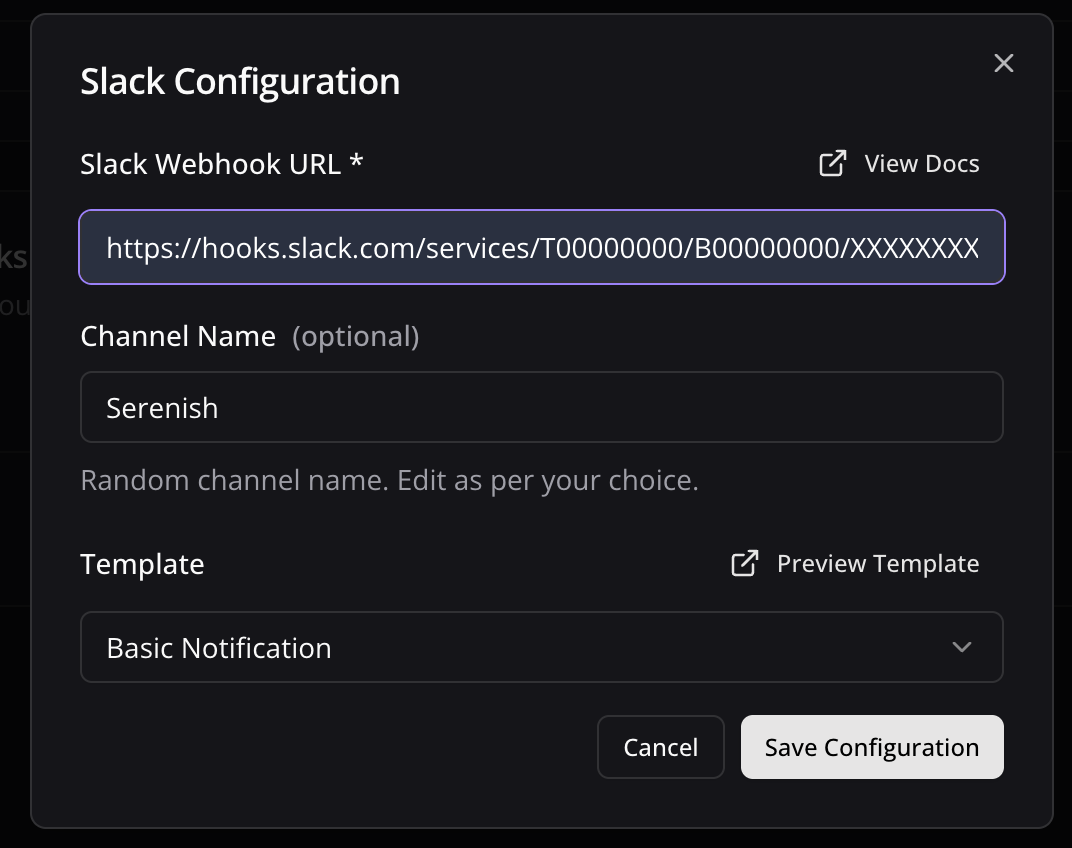 To ensure your Slack notifications are working correctly:
1. In the channel configuration page, click **Send Test Message**
2. Select which webhook payload to use for the test (or use a sample)
3. The test message will be sent to your configured Slack channel
4. Verify that the message appears as expected
If the test is successful, you're all set to receive webhook notifications in your Slack channel.
## Slack Templates Customization
### Custom Slack Templating
Hookflo provides Rich Text Editor along with Block editor for Slack Message Customization:
1. Navigate to Slack Templates in Sidebar
2. Choose Webhook For which you want to edit the template.
3. Slack Templates currently do not support dynamic variables will be available soon,
4. Create your own template using our Slack's Block Editor
5. Slack templates have character limits of 1700 characters,
6. your have full control over how slack message should looks and can be previewed with real time editor
***
Need more help? [Contact our support team](mailto:team.hookflo@gmail.com) or join our [Discord forum](https://discord.gg/SNmCjU97nr). or [DM me directly on X](https://x.com/Prateek53788134)
To ensure your Slack notifications are working correctly:
1. In the channel configuration page, click **Send Test Message**
2. Select which webhook payload to use for the test (or use a sample)
3. The test message will be sent to your configured Slack channel
4. Verify that the message appears as expected
If the test is successful, you're all set to receive webhook notifications in your Slack channel.
## Slack Templates Customization
### Custom Slack Templating
Hookflo provides Rich Text Editor along with Block editor for Slack Message Customization:
1. Navigate to Slack Templates in Sidebar
2. Choose Webhook For which you want to edit the template.
3. Slack Templates currently do not support dynamic variables will be available soon,
4. Create your own template using our Slack's Block Editor
5. Slack templates have character limits of 1700 characters,
6. your have full control over how slack message should looks and can be previewed with real time editor
***
Need more help? [Contact our support team](mailto:team.hookflo@gmail.com) or join our [Discord forum](https://discord.gg/SNmCjU97nr). or [DM me directly on X](https://x.com/Prateek53788134)